






























Clean Up Your Mac's Login Items for Better Performance

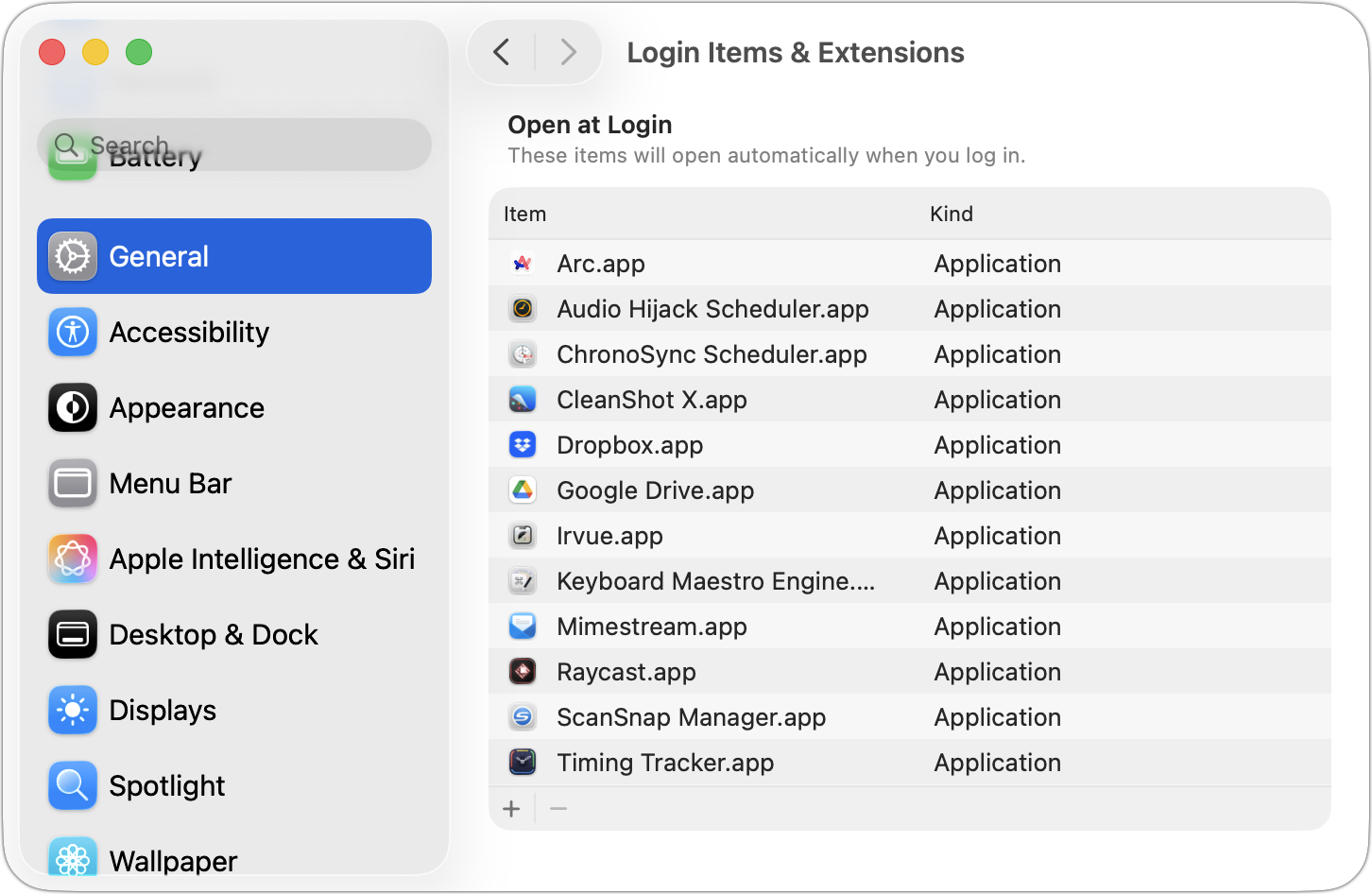
If you use certain apps or documents regularly, you can ensure they’re ready to go after a restart by manually adding them to your Login Items list. Some login items are also added automatically by apps that want to be available at all times. Either way, when the Mac boots, it automatically opens all login items. But it’s easy to end up with login items for apps you no longer use, which can slow down startup and overall performance, increase the risk of conflicts, and even expose you to attacks. We encourage you to review your Mac’s login items periodically and remove any items you’re not using. Just navigate to System Settings > General > Login Items & Extensions, select the unwanted items, and click the minus button. If you make a mistake, drag the app back in from the Finder.
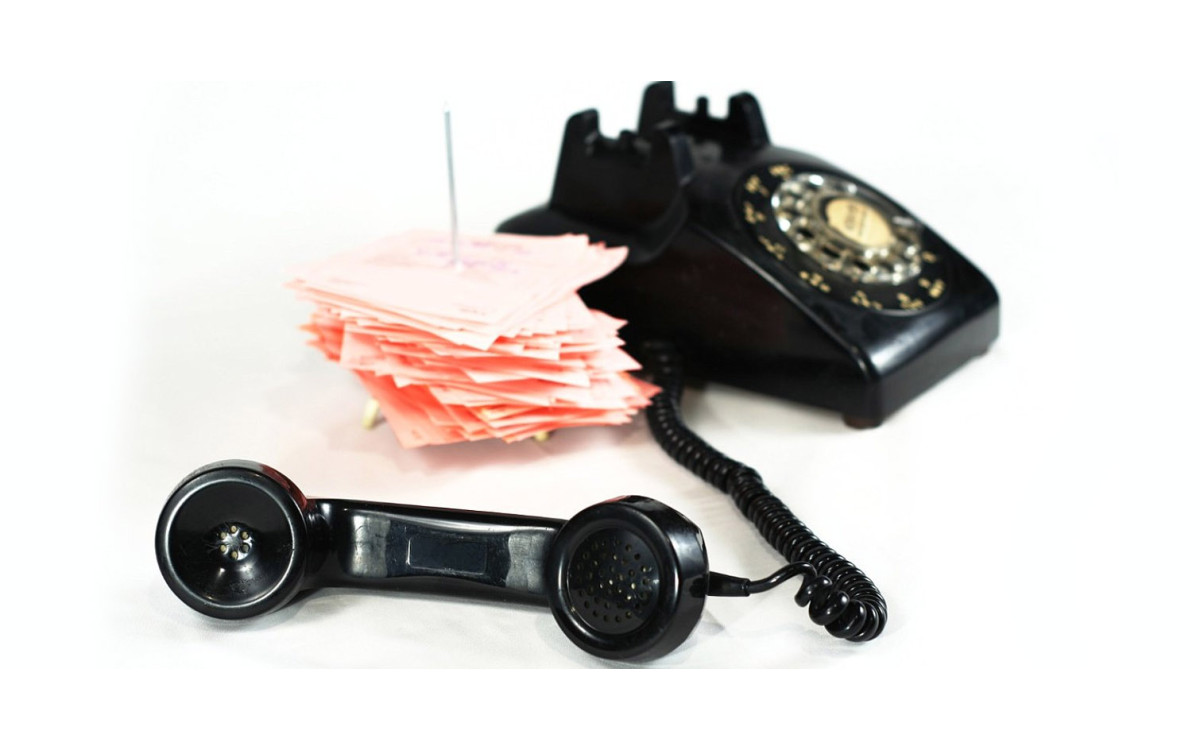
(Featured image by iStock.com/artisteer)
Social Media: Speed up your Mac’s startup, reduce conflicts, and improve security by cleaning out old login items. It takes just a minute in System Settings.
Want to learn more?